
How does scheduling work in Clarityflow, and which plans include calendar sync, recurring appointments and Zoom links?
Clarityflow has built-in scheduling: clients book from your scheduling links or from a message in a conversation. Every plan includes Google Calendar sync, availability rules, appointment reminders and unlimited bookings. Recurring appointments, booking questions, team appointments, automatic Zoom meeting links and the number of appointment types depend on your plan, as listed on the pricing page.
Updated · By Clarityflow
This page is published by Clarityflow, the coaching software it describes; the steps follow Clarityflow's help guides.
Scheduling facts
Fact | Detail |
|---|---|
On every plan | Google Calendar sync, availability rules, appointment reminders, and discussing appointments in your conversations |
Bookings | Unlimited appointment bookings on every plan |
Depending on your plan | Recurring appointments, booking questions, team appointments, automatic Zoom meeting links and selling sessions |
Appointment types | Each appointment type has its own scheduling link and settings; how many you can create depends on your plan |
Calendar sync | Works with Google Calendar; busy times on your calendar are removed from the times clients are offered |
Changing plans | Change plans anytime |
Which plans include each scheduling feature | The Appointments rows at clarityflow.com/pricing |
Facts checked November 9, 2026.
How scheduling works
Each appointment type, such as a coaching session or a consultation call, is its own scheduling link with its own availability, meeting length and settings. Clients book on the type's scheduling page, or you send an Appointment message in a conversation and the client picks a time inside it. You decide whether a booking starts a new conversation, stays in the conversation it was booked from, or creates none, so the session and the messages about it stay together.
Participants are notified of bookings and changes, and reminders go out before the appointment. With your Google Calendar connected, anything already on that calendar is removed from the times clients see, so you aren't double-booked.
Before you start
You need:
Any Clarityflow plan for scheduling links, Google Calendar sync, availability rules and reminders. For recurring appointments, booking questions, team appointments and Zoom links, check pricing for which plans include them.
A Google account that owns the calendar you want to sync (optional, recommended).
A Zoom account, if you want a Zoom link on every booking.
When you're done, you have a scheduling link clients can book, synced with your calendar, with each booking tied to a conversation.
Set up scheduling
Connect Google Calendar. Select Appointments, or go to My Settings › Calendar Connection, and select Connect Google calendar. Sign in with the Google account that owns the calendar. If that account has several calendars, select "Change calendar" to pick the one Clarityflow uses. Connecting is optional, but without it Clarityflow can't see your other commitments. See how to connect Google Calendar.
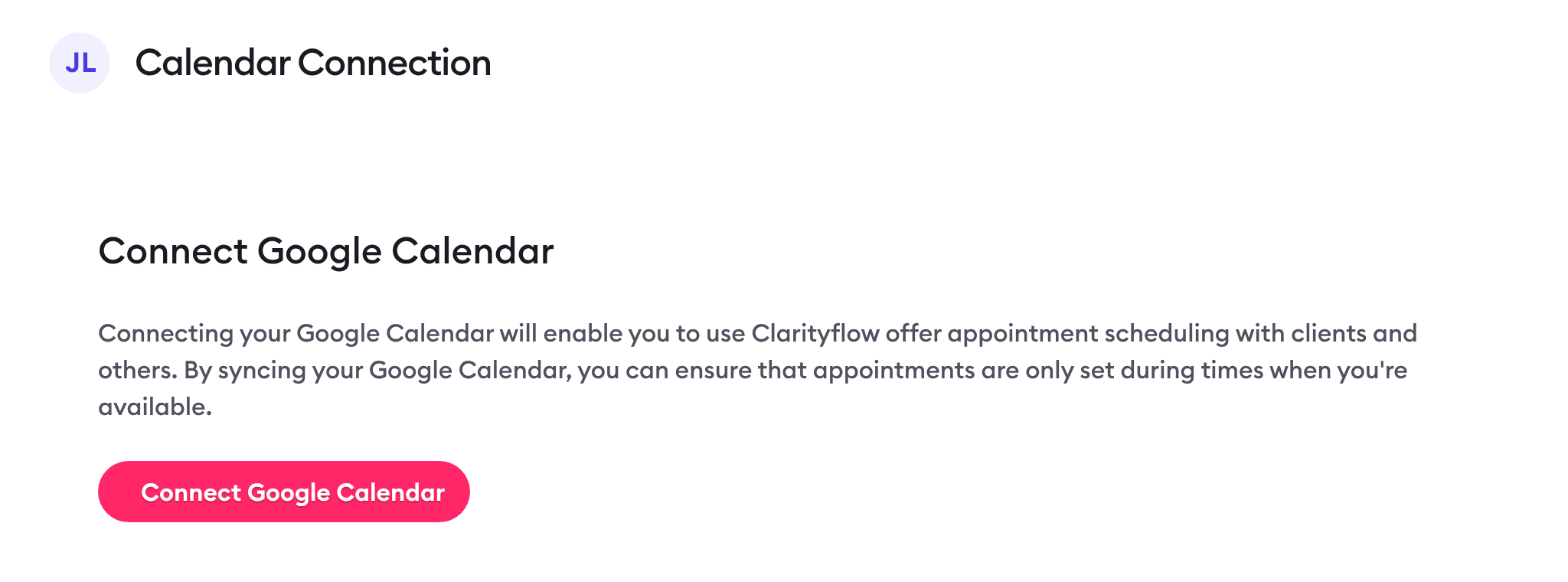
My Settings › Calendar Connection. Screen captured November 2026.
Set your availability. Go to Appointments › Settings › Availabilities. Every account starts with one availability, Monday to Friday, 9am to 5pm. Edit it, or select New Availability and add time blocks for each day. One availability is the default for new appointment types. On a team, each member can also set their own hours under My Settings › My Availability. See how to customize your availability and team bookings.
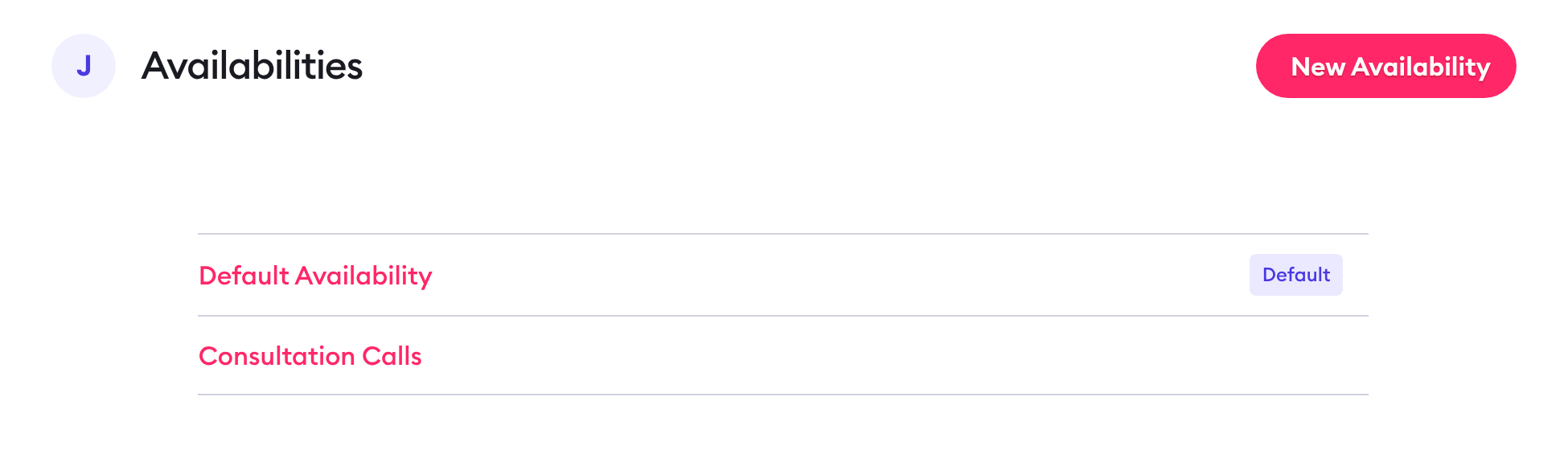
Appointments › Settings › Availabilities. Screen captured November 2026 with sample data.
Create an appointment type. Go to Appointments › Scheduling Links. Every account starts with one type, "Coaching Session"; edit it or select New Appointment Type. For each type, set the meeting length, start interval, buffers before and after, minimum notice, how far ahead people can book, and when the reminder goes out. Depending on your plan, you can also add booking questions and choose which team members each booking goes to. See how to set up appointment types.
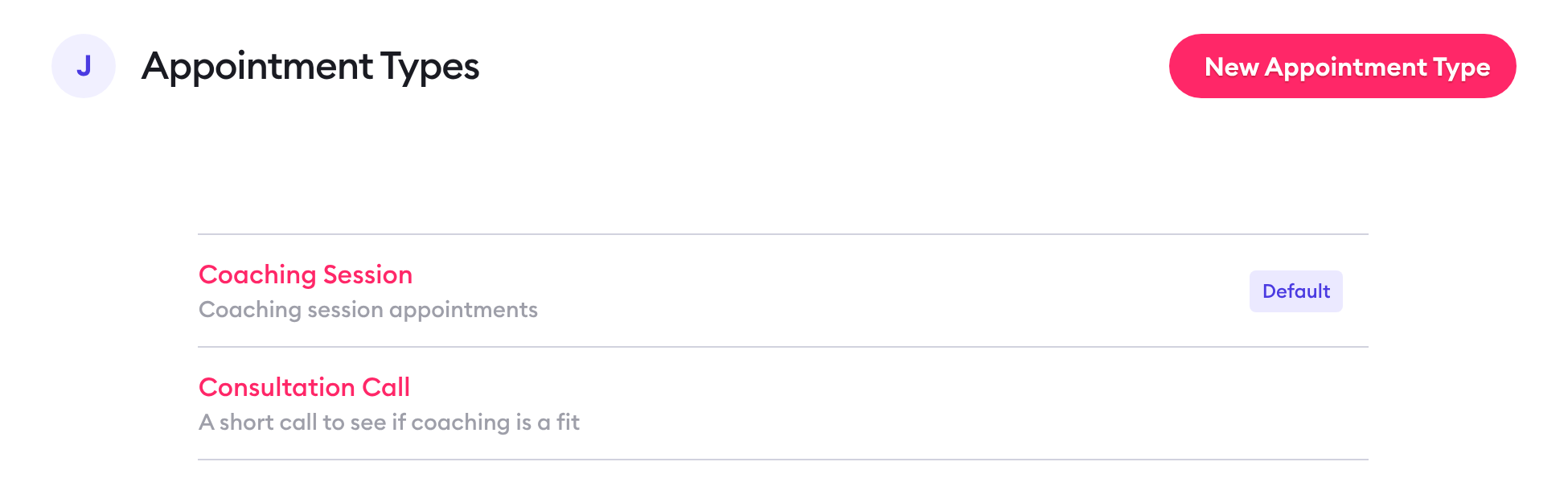
Appointments › Scheduling Links. Screen captured November 2026 with sample data.
Add a location or Zoom. In the appointment type's Location setting, paste a call link or a meeting place. Or, depending on your plan, connect Zoom under My Settings › Zoom Connection and choose Zoom as the Location: Clarityflow then creates a Zoom meeting for every booking of that type. With call recording turned on in Zoom, recordings are posted as messages in the booking's conversation. See how to add Zoom to your appointments and pricing.
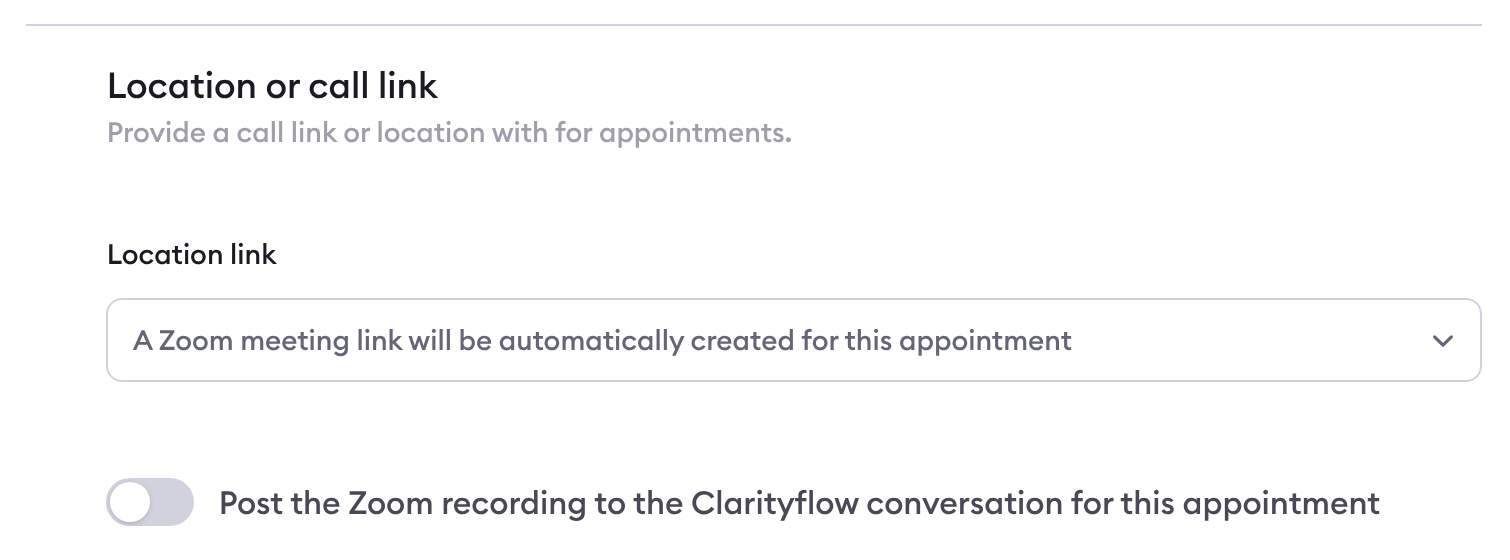
An appointment type's Location or call link setting. Screen captured November 2026.
Offer recurring appointments (depending on your plan). In the appointment type, turn on Appointments series under Recurring Appointments. Let the client pick the time of each session, or repeat on a fixed schedule, daily, weekly, monthly or quarterly. A series can end after a number of appointments or after a period of time. See how recurring appointments work and pricing.
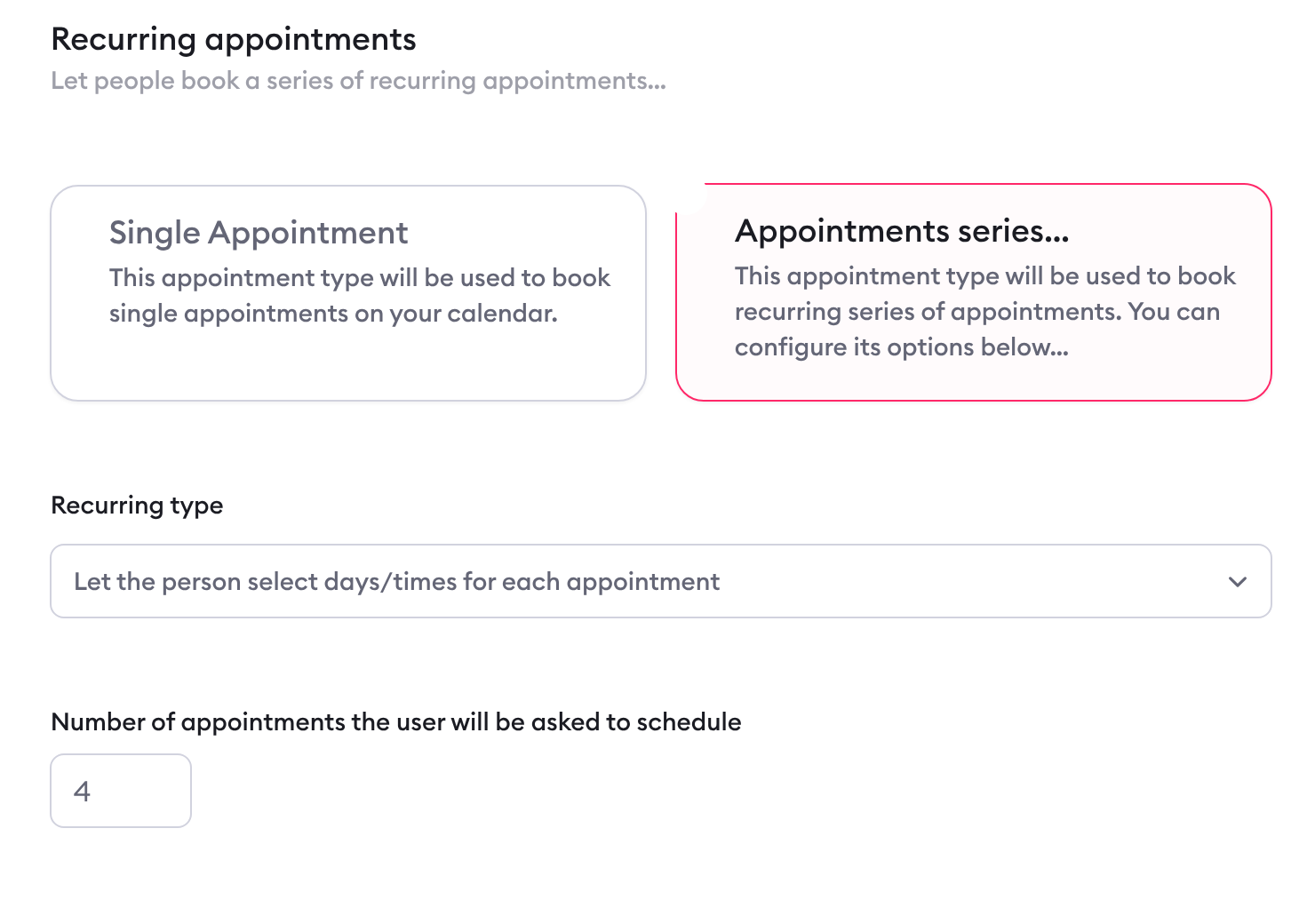
An appointment type's Recurring appointments setting, with Appointments series selected. Screen captured November 2026.
Share it. Send the appointment type's scheduling link. To show slots from a later date, add ?start= and the date to the link, for example ?start=Jun05. Or, in a conversation, select Record › Appointment, choose the appointment type and send the message: the client books inside it. The appointment type's Conversation setting decides where booking details go. See how to offer a booking in a conversation.
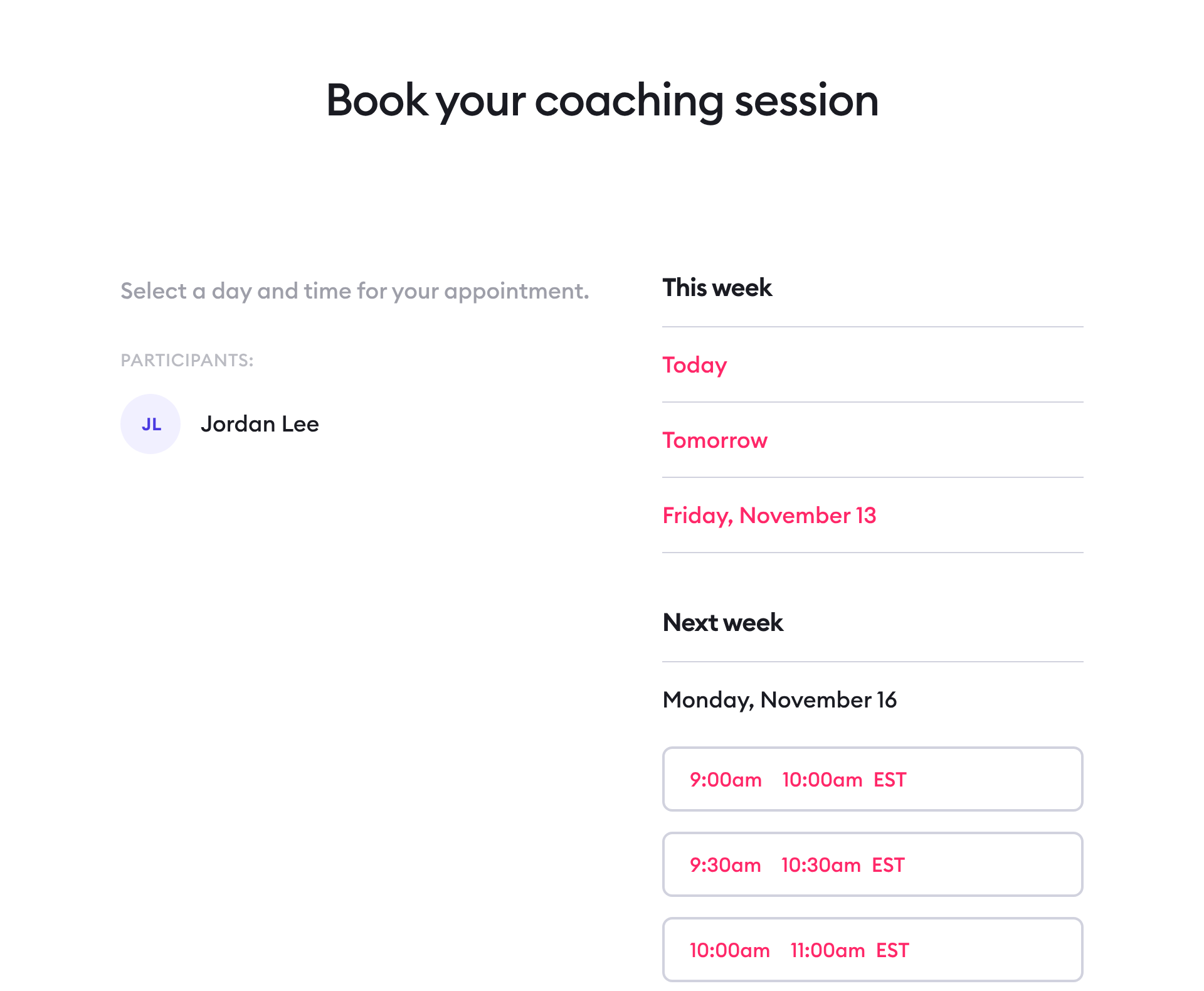
A scheduling page as a client sees it. Screen captured November 2026 with sample names.
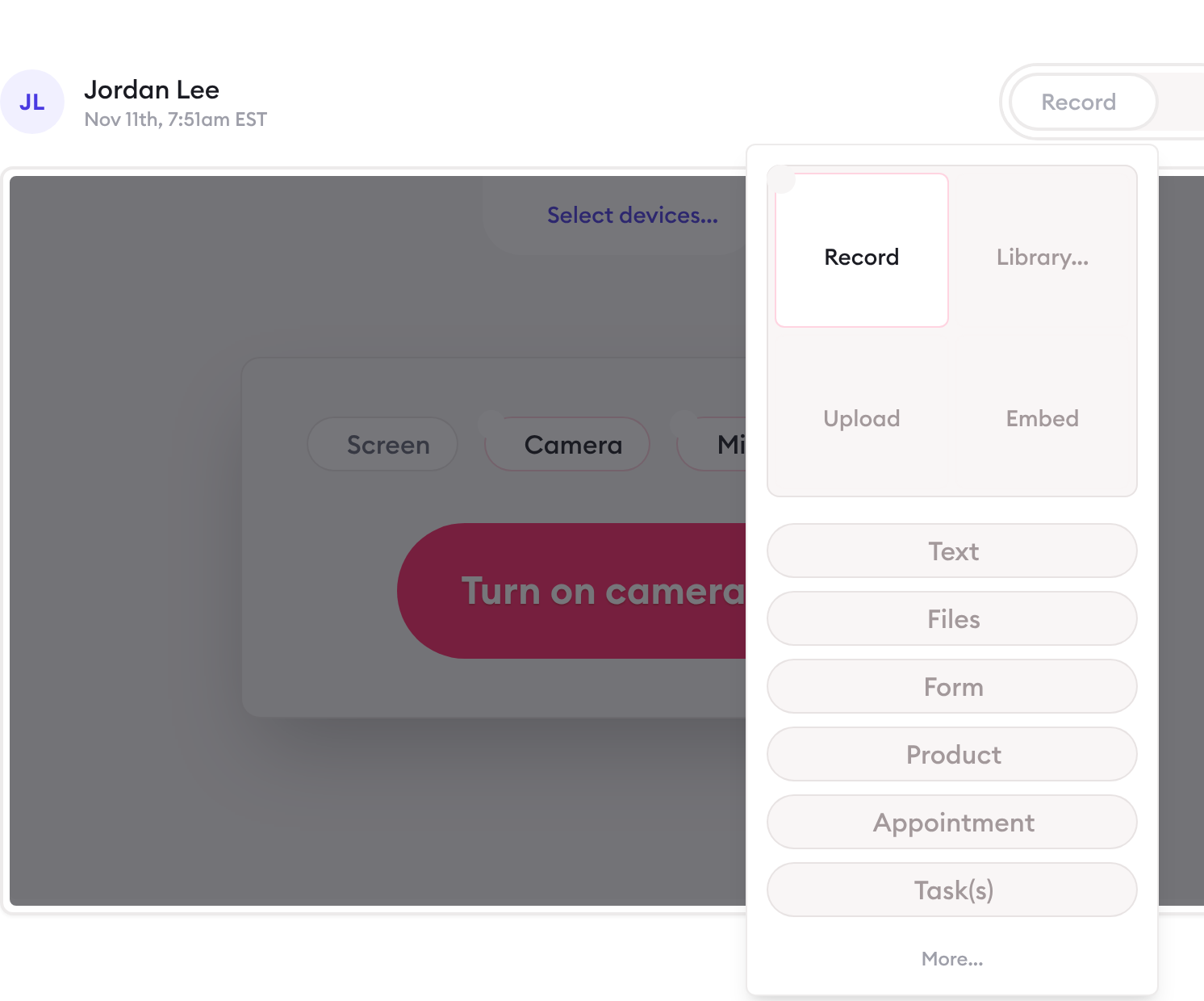
The Record menu in a conversation. Screen captured November 2026 with sample names.
Sell sessions (optional, depending on your plan). With Clarityflow Commerce, you can sell single sessions or packages of sessions that clients then book. See how to sell coaching packages, subscriptions and payment plans, how to sell coaching sessions and pricing.
Limits of this page: it describes Clarityflow as documented in its help guides and pricing page on November 10, 2026; screens and menu labels can change.
When not to use this
Your calendar isn't Google Calendar. Calendar sync connects a Google Calendar. If your calendar lives elsewhere, Clarityflow can't see your other commitments, so you keep your availability up to date in Clarityflow yourself.
You block whole days with all-day events. All-day Google Calendar events may not block times in Clarityflow. Add a timed event, such as "Unavailable" from 8am to 5pm, instead. See how to block an entire day.
You need recurring appointments, booking questions, team appointments or Zoom links. They depend on your plan; check the Appointments rows on the pricing page before you set them up.
You only need a public booking page. Clarityflow's scheduling is built around client conversations. If you don't message clients between sessions, a dedicated scheduling tool may be simpler.
Frequently asked questions
Does Clarityflow sync with Google Calendar?
Yes, on every plan. Connect the Google Calendar you use under My Settings › Calendar Connection, and times already taken on that calendar are removed from the slots clients are offered.
Can clients book recurring sessions?
Yes, depending on your plan. Turn on Appointments series for an appointment type: the client picks the time of each session, or the series repeats on a fixed schedule and can end after a number of appointments or a period of time. See the pricing page for which plans include it.
Does each booking get its own Zoom link?
Depending on your plan, yes: connect Zoom under My Settings › Zoom Connection and choose Zoom as the appointment type's Location, and every booking of that type gets its own Zoom meeting. See the pricing page for which plans include the Zoom integration.
How many appointment types can I create?
It depends on your plan; the pricing page lists the current number for each plan. Every account starts with one type, "Coaching Session", and you can change plans anytime.
See scheduling in Clarityflow
See how bookings, calendar sync and conversations work together, and which plan fits.

Learn more about Clarityflow.