
Can coaches and clients use Clarityflow on iPhone, iPad and Android?
Yes. Clarityflow has a free app for iPhone and iPad and a free app for Android, and coaches and their clients both use them. In the app you record video or audio messages, send text, save drafts and get push notifications. Without the app, Clarityflow works in any mobile browser. Every plan includes the apps.
Updated · By Clarityflow
This page is published by Clarityflow, the coaching software it describes; the steps follow Clarityflow's help guides and its App Store and Google Play listings.
Get Clarityflow for iPhone and iPad · Get Clarityflow for Android
Clarityflow mobile app facts
Fact | Detail |
|---|---|
Clarityflow for iPhone and iPad | Free on the App Store. Requires iOS or iPadOS 13.0 or later |
Clarityflow for Android | Free on Google Play. Requires Android 8.0 or later |
Who uses the apps | Coaches and their clients, each signing in with their own Clarityflow email and password |
Notifications | Push notifications, chosen for each type of notification, alongside or instead of email |
Without the app | Every Clarityflow page works in a mobile browser, including playback and upload, and you can save it to your home screen |
Plans | Every plan includes the iPhone and Android apps and the mobile web app |
Plans and prices |
Facts checked November 9, 2026.
Before you start
You need:
A Clarityflow login: your own account, or one you set up from a coach's invitation.
An iPhone or iPad on iOS or iPadOS 13 or later, or an Android phone on Android 8.0 or later.
To allow the camera, microphone and photos when the app asks, so you can record and upload.
When you're done, you can read, watch, record and reply in your Clarityflow conversations from your phone or iPad, and get a push notification when someone responds.
Set up the app
Install Clarityflow from the App Store (iPhone and iPad) or Google Play (Android). Both are free.
Sign in with your Clarityflow email and password.
Allow notifications, the camera and the microphone when the app asks.
Choose your notifications. In your profile › Notifications, on the web or in the app, choose for each type of notification whether it comes as a push notification, by email, or both. If push notifications stop arriving, see how to fix mobile notifications.
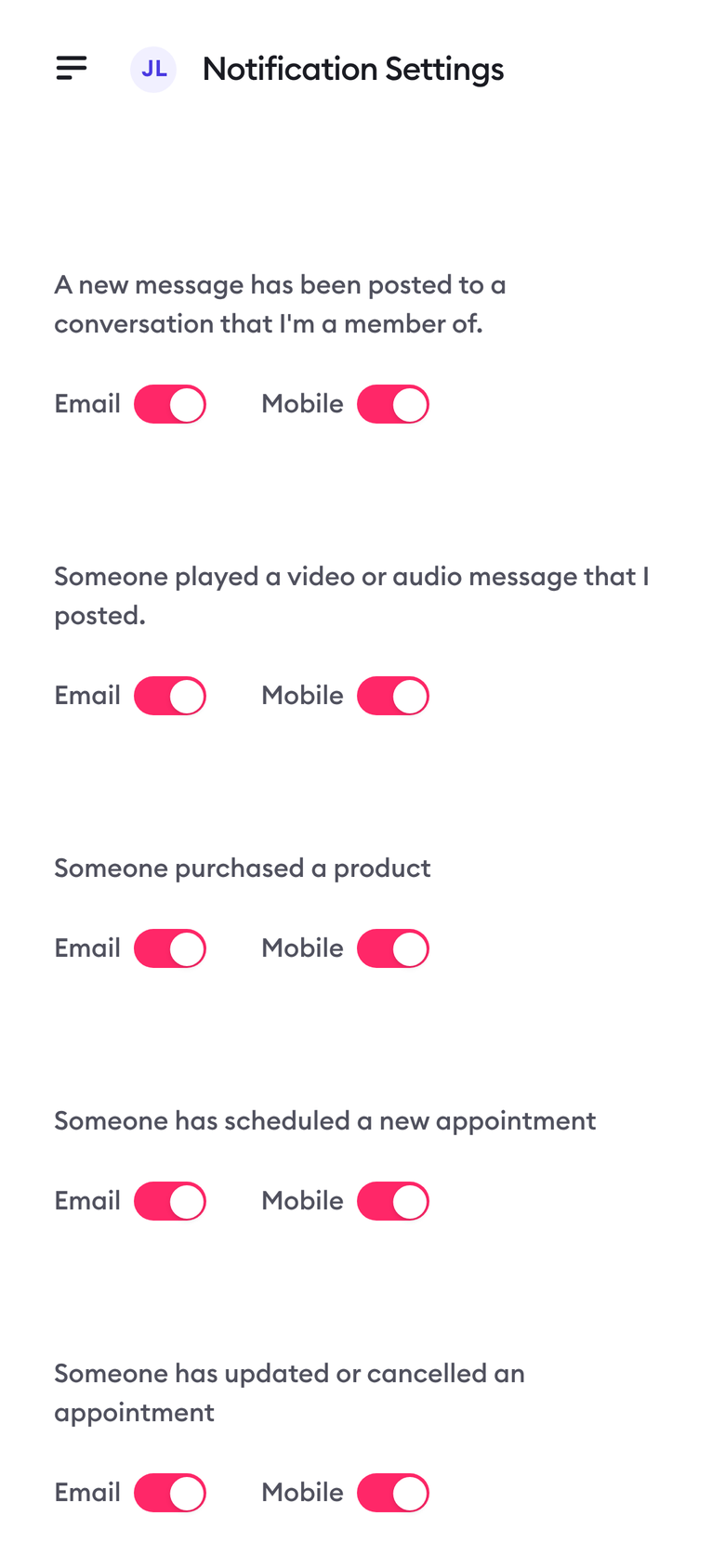
Profile › Notifications in a phone's browser. Screen captured November 2026 with sample data.
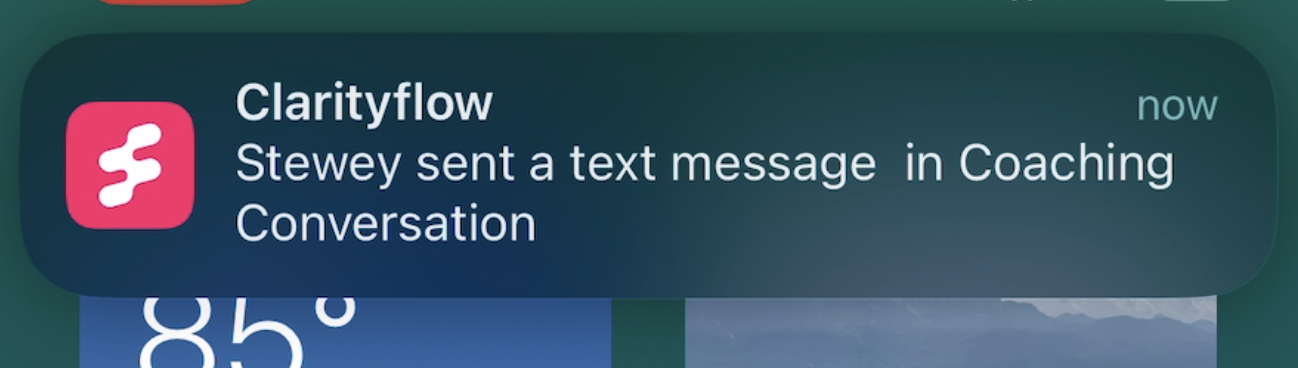
A Clarityflow push notification.
Record and send a message
Open a conversation and select Create Message. The app's recorder opens.
Choose your message type: Camera & mic for video, Mic only for an audio message, Text, a Template from your Clarityflow Library, or Upload to send a video from your photo library or your files. You can also add text to a recording.
Review it. Select Edit to trim the start and end of your recording, Save to keep it as a draft, or Send message.
Let it upload. The upload starts while you're still recording and finishes in the background, so you can switch apps. If a call comes in or you switch apps while recording, the recording ends and opens for review. If the app is quit or your phone runs out of battery before the upload finishes, the recording stays on your device, and the app offers to finish it the next time you open it.

Choosing a message type in the Clarityflow app.

Recording an audio message.
Getting your clients on the app
Send your clients the two store links, or a link to this page.
A client you invited accepts the invitation first. They follow the invitation link, set a password and accept the invitation. Invited clients don't open a Clarityflow account of their own or pay Clarityflow. See do clients need a Clarityflow account?
They sign in to the app with that email and password, and allow notifications so they hear when you reply.
Clients who'd rather not install anything can use Clarityflow in their phone's browser, or reply to a notification email: the text of their reply is posted to the conversation.
What the app adds over a mobile browser
Every Clarityflow page works in a mobile browser, including playback and upload, and you can save Clarityflow to your home screen. The app adds:
Push notifications when someone responds.
Audio-only recording with Mic only.
Uploading while you record, finishing in the background.
Recovery of an unfinished recording: it stays on your device, and the app offers to finish it.
Limits of this page: it describes Clarityflow as documented in its help guides, pricing page and App Store and Google Play listings on November 9, 2026. The steps weren't tested on a device for this page, and screens and menu labels can change.
When not to use this
You need more than a trim. On a phone you can keep one part of a recording by trimming its start and end. To edit more than one segment, save the message as a draft and edit it in a desktop browser.
You're on a computer. Use Clarityflow in your web browser.
Your phone is older than the requirements. Below iOS 13 or Android 8.0, use Clarityflow in the phone's browser.
A client only needs to answer in text. A reply to the notification email is enough; they don't need the app.
Frequently asked questions
Is there a mobile app for iPhone or Android?
Yes. Clarityflow has a free app for iPhone and iPad on the App Store and a free app for Android on Google Play, for coaches and their clients. Every plan includes them; see pricing and how the plans differ.
Does Clarityflow work on iPad?
Yes. The same Clarityflow app on the App Store is built for iPhone and iPad and needs iPadOS 13 or later. You can also use Clarityflow in the iPad's browser.
Do my clients need to install the app?
No. Clients can use the app, Clarityflow in a mobile browser, or a reply to the notification email. Clients you invite don't pay Clarityflow or open an account of their own.
See Clarityflow on your phone
See how coaches and clients use Clarityflow on the web and on mobile, and which plan fits.

Learn more about Clarityflow.